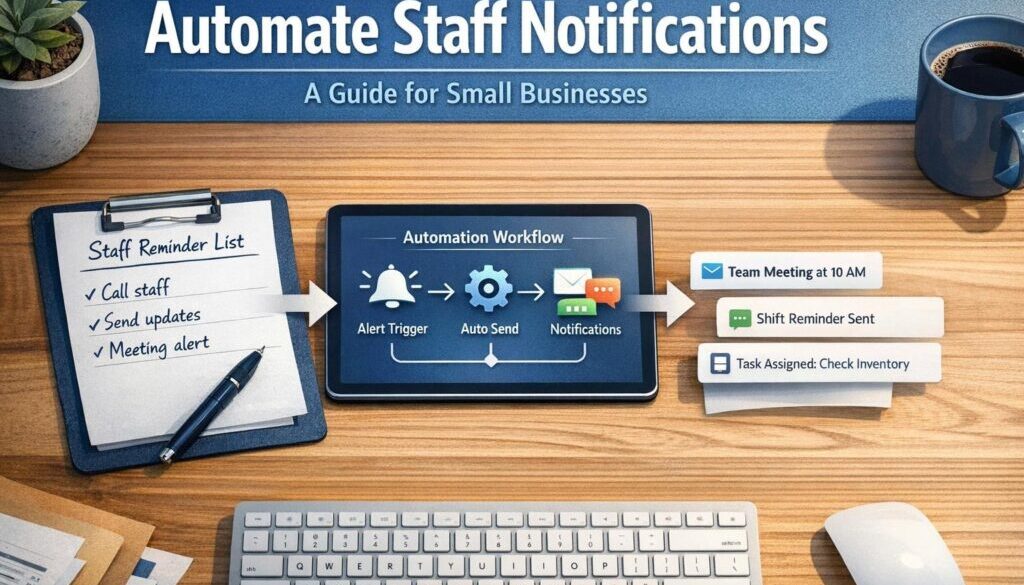
How to Automate Staff Notifications: A Practical Guide for Small Businesses
If your team still relies on manual calls, email follow-ups, and reminder messages to keep everyone informed, it may be time to automate staff notifications. For many small businesses, staff communication is one of the easiest places to save time, improve consistency, and reduce missed messages.
This guide explains what staff notification automation is, which messages are worth automating, what still needs human review, and how Australian small businesses can approach privacy and approvals sensibly.
null
Whether you manage rosters, approvals, onboarding, or internal updates, the goal is simple: send the right message to the right person at the right time, without creating more admin.
For businesses looking to reduce repetitive internal work more broadly, small business automation is often a practical place to start, especially when communication is tied to routine workflows.
What is staff notification automation?
Staff notification automation is the use of software and workflow rules to send internal messages automatically when something happens. In plain English, a system watches for a trigger, then sends the right notification without someone having to do it manually every time.
This is usually most useful for repetitive, event-driven communication such as shift changes, leave approvals, task reminders, onboarding steps, or urgent operational alerts.
What counts as a staff notification?
Common internal notifications include:
- shift rosters and roster changes
- leave approvals or declined leave requests
- task assignments and due-date reminders
- onboarding and training reminders
- timesheet or payroll reminders
- policy acknowledgements
- meeting reminders
- urgent incident or safety alerts
- approval requests and status updates
How automation works in practice
A simple workflow might look like this:
- A staff member submits a leave request.
- The request is reviewed and approved.
- The system sends a notification to the employee and perhaps their manager.
- If needed, a follow-up reminder is sent to update a roster, task list, or calendar.
That kind of workflow is common because it reduces repetitive admin while keeping communication timely and consistent.
Why small businesses automate staff notifications
Small businesses usually do not automate staff communication just to be clever. They do it because manual communication takes time, gets messy, and increases the chance of something being missed.
When you automate staff notifications, you can improve day-to-day operations in a few important ways.
Reduce admin time
Every reminder, update, and follow-up message sent manually takes attention away from more important work. Automating routine notifications reduces that repetitive coordination work.
Improve speed and consistency
People forget. Messages get delayed. Details get missed. Automation helps ensure the same process runs the same way each time, which improves consistency across the business.
Lower the risk of missed messages
Missed roster changes, forgotten timesheets, or overlooked training reminders can create avoidable problems. Automated notifications help reduce those gaps by sending messages as soon as a trigger occurs.
This is one reason many businesses look at automation solutions when they want to simplify communication, approvals, and internal follow-ups.
The most useful staff notifications to automate
Not every staff message should be automated, but many routine communications are good candidates. The best ones are repetitive, time-sensitive, and based on clear rules.
Shift and roster changes
Roster updates are a classic example. If a shift changes, the affected staff member or team can be notified automatically by email, SMS, or chat message.
This is especially useful for hospitality, retail, healthcare, and trades businesses where shift visibility matters.
Leave and absence approvals
Leave requests often move through a predictable process. Automation can notify the employee when the request is received, approved, declined, or waiting on review.
It can also alert the relevant manager so requests do not sit unnoticed.
Task assignments and reminders
When someone is assigned a task, they can receive an automatic notification. If the task is approaching its due date, a reminder can be sent. If it remains incomplete, an escalation can be triggered.
This is useful for admin tasks, follow-ups, compliance checks, and internal operations work.
Onboarding and training reminders
New starters usually need the same series of messages: welcome information, policy links, induction steps, and training reminders. Automation can help deliver those messages in sequence.
For structured internal workflows like this, businesses often benefit from process mapping before building anything.
Timesheet and payroll reminders
Many businesses still chase timesheets manually. A simple reminder workflow can notify staff before the deadline, then send a follow-up if a submission is missing.
That can reduce payroll delays and cut down on back-and-forth communication.
Safety, incident, and urgent operational alerts
Some businesses need urgent internal alerts for incidents, maintenance issues, or safety matters. These workflows can be automated, but they deserve extra care because speed, accuracy, and escalation rules matter.
High-risk notifications often need human review before they are sent, especially where the message may involve sensitive information.
How automated notification workflows work
Most notification systems follow the same basic pattern:
- Trigger: something happens, such as a form submission, approval, roster change, or calendar event
- Rule: the system checks what should happen next
- Message: the notification is prepared and sent
- Recipient: the right staff member, team, or manager receives it
- Escalation: if nothing happens, a reminder or next-step alert may follow
Common triggers
According to current workflow documentation from tools like Microsoft Power Automate, common triggers can include form submissions, new records, approvals, or changes in connected systems.
Other common triggers include:
- a new row in a spreadsheet or database
- a calendar event
- a helpdesk or ticket status change
- a leave, roster, or payroll action
- an incident report or internal request
Common delivery channels
Staff notifications can be delivered by:
- SMS
- team chat platforms
- push notifications in apps
- workflow inboxes or task lists
- calendar invites
The best channel depends on how your team works. For example, casual or shift-based workers may be more likely to respond to SMS, while office teams may prefer email or chat notifications.
Where approvals fit in
Automation does not have to mean “fully automatic with no checks.” In many businesses, the best setup is partly automated and partly human-reviewed.
For example, a system can prepare the message and route it to a manager for approval before sending. That approach is often safer for sensitive, unusual, or high-impact notifications.
Tools that can send automated staff notifications
There is no single best tool. The right option depends on the software you already use and how complex the workflow is.
Microsoft 365 and Power Automate
If your business already uses Microsoft tools, Power Automate is a practical option for building workflows across Microsoft and third-party apps. Microsoft Teams can also be used for internal notifications and collaboration.
Microsoft’s own support pages are a good starting point if you want to understand how messages and workflows can sit inside a familiar office environment.
Google Workspace and Apps Script
Businesses running on Google Workspace can use tools like Forms, Sheets, Calendar, Gmail, and Google Apps Script to create simple automated workflows.
This is often a good fit for lightweight internal processes such as approvals, reminders, and request tracking.
Slack workflows
Slack can be useful for teams that already work inside chat-based collaboration. Its Workflow Builder supports automated internal actions and notifications, which can help teams keep information moving without endless manual messaging.
Jira and Jira Service Management
If your staff notifications are tied to tickets, requests, or issue status changes, Atlassian’s automation tools may be relevant. Jira automation and Jira Service Management automation can support notifications related to workflow updates and request handling.
See the official documentation for Jira Automation and Jira Service Management automation.
Zapier, Make, and other automation platforms
Platforms such as Zapier and Make can connect different business apps and move information between them. That makes them useful when your notifications depend on more than one system.
These tools can be especially helpful when your business uses a mix of forms, spreadsheets, chat apps, and cloud software.
What should still be handled manually?
Automation is helpful, but it is not the right answer for every staff message. Some situations still need a person to review the details before anything is sent.
Sensitive HR matters
Disciplinary issues, performance concerns, and confidential HR matters should generally stay under human control. These messages can be sensitive and may require judgement, context, and discretion.
Disciplinary and legal issues
Anything with legal implications, formal complaint handling, or serious workplace consequences should not be left entirely to automation.
Safety-critical or ambiguous cases
Urgent incidents can be automated for speed, but the final decision about what is sent, and to whom, should often involve a person. The more serious or uncertain the situation, the more important human oversight becomes.
Privacy, security, and compliance for Australian businesses
When staff notifications include personal information, Australian businesses need to think carefully about privacy, access, and retention. The Office of the Australian Information Commissioner provides guidance on the Privacy Act and the Australian Privacy Principles, and business.gov.au also offers practical privacy guidance for small businesses.
Not every small business is covered in exactly the same way, but the overall principle is the same: collect only what you need, protect it properly, and avoid unnecessary exposure.
Personal information and access control
Staff contact details, leave records, payroll information, and other internal records should only be accessible to the people who need them. If a workflow sends messages automatically, make sure the data fields and recipients are configured correctly.
Secure storage and retention
If a notification is part of a record that needs to be kept, think about where it is stored and who can access it. This matters for HR, payroll, safety, and complaint-related processes.
After-hours messaging and staff expectations
Automation can make it too easy to send messages outside working hours. That is sometimes necessary, but it should be intentional. Overusing after-hours alerts can frustrate staff and reduce the value of the system.
As a simple rule, if the message is not urgent, it probably does not need to be sent at night.
How AI can help without replacing human judgment
AI can be useful in staff notification workflows, but it should support decisions rather than make them blindly.
Drafting and summarising
AI can help draft clearer notification text or summarise a long request into a short internal message. That can save time when managers need to communicate quickly.
Classification and routing
AI may also help identify whether a message looks like a leave request, an urgent issue, a routine admin task, or something else. That can support routing, triage, and prioritisation.
Where AI should not make the final call
AI should not be the final decision-maker for disciplinary matters, payroll exceptions, legal issues, or safety-critical actions without human oversight. It is best used for support tasks such as sorting, summarising, and drafting.
Common mistakes to avoid
Many automation problems are not technical problems. They are workflow problems. If the process is unclear, automation will simply make the confusion happen faster.
Over-notifying staff
If every small event triggers a message, people stop paying attention. Keep notifications focused on what matters.
Sending to the wrong people
Incorrect recipient rules can create confusion and privacy issues. Always check who receives what.
Weak approval rules
Some notifications should not go out until a manager reviews them. If approvals are important, build them into the process from the start.
Poor data mapping and outdated contact details
Automation only works well when the underlying data is accurate. Outdated mobile numbers, missing emails, and mismatched staff records can all lead to failed notifications.
This is why it helps to start with one clearly defined process before expanding into more complex automation.
A simple framework to get started
If you want to automate staff notifications without overcomplicating things, start small and build carefully.
1. Choose one repetitive workflow
Pick a process that happens often and follows a clear pattern, such as leave approvals, roster changes, or timesheet reminders.
2. Map the trigger, message, recipient, and escalation
Write down exactly what starts the workflow, who should be notified, what the message should say, and what happens if nothing is done.
3. Test, review, and refine
Test the workflow with a small group first. Check that the timing is right, the wording is clear, and the correct people are receiving the message.
If the workflow handles a business-critical process, consider getting help designing it properly. A well-planned system is far easier to maintain than a rushed one.
For a practical example of how repetitive administrative workflows can be simplified, see our trust account automation case study. While the process is different, the principle is similar: clear rules, structured inputs, and less manual follow-up.
Practical examples of automation in the real world
Simple, repetitive workflows are often the best place to start. Businesses that need to coordinate internal updates, approvals, or routine content and task planning can usually benefit from a more structured process.
Our content calendar automation case study shows how a repeating workflow can be organised so less time is spent manually coordinating the next step.
For businesses that deliver files, links, or digital assets as part of an internal or customer-facing process, digital product automation is another example of how a repetitive workflow can be made more reliable.
When to get help with staff notification automation
Some businesses can set up basic reminders themselves. But if your workflow involves multiple systems, approvals, sensitive information, or staff across different roles and locations, professional help can save time and reduce mistakes.
If you need to simplify communication across forms, spreadsheets, chat tools, and internal systems, practical automation solutions may be worth exploring. You can also learn more about the broader approach through business automation resources and related guides.
Ready to Simplify Staff Notifications?
If repetitive internal messages are slowing your team down, Simple Automations can help you map the workflow, identify the right trigger points, and design a simpler notification process.
Conclusion
To automate staff notifications well, focus on the messages that are repetitive, time-sensitive, and rule-based. That is where automation can save the most time and reduce the most admin. At the same time, keep sensitive or ambiguous matters under human review, especially where privacy, payroll, HR, or safety are involved.
For Australian small businesses, the best systems are usually the simple ones: clear triggers, sensible approvals, secure handling of information, and a communication channel staff actually use. Done well, staff notification automation can make day-to-day operations calmer, faster, and far more consistent.
If you are ready to simplify a repetitive internal process, start with small business automation or explore automation case studies to see how structured workflows can be improved in practice.