Customer Document Automation: A Practical Guide for Small Businesses
Customer documents are part of everyday business life, but they can also become a major source of admin. Quotes, contracts, invoices, onboarding packs and customer forms all take time to create, send, sign, file and track. Customer document automation gives small businesses a practical way to reduce that workload without making the process more complicated.
In this guide, we’ll look at what customer document automation is, which documents are easiest to automate, how the workflow usually works, what software is commonly involved, and what Australian businesses should consider around privacy, recordkeeping and e-signatures.
null
The goal is simple: reduce repetitive admin, keep documents accurate, and make customer processes easier to manage.
For businesses exploring broader ways to simplify admin, small business automation can be a practical place to start. If you want to see how these ideas are applied in real workflows, Simple Automations also shares examples in its automation case studies.
What is customer document automation?
Customer document automation is the use of software, templates, workflow rules and sometimes AI to create, send, approve, store and track customer-facing documents with less manual work.
Instead of starting from scratch each time, the business uses structured data from a CRM, form, spreadsheet or accounting system to populate a standard document template. That document can then move through approval, signature, delivery and filing steps automatically or semi-automatically.
How it differs from simple templates
A template alone still needs someone to open the file, type or paste in the details, check the formatting, save a copy, email it, and file it afterwards. That helps with consistency, but it does not remove much admin.
Customer document automation goes further. It connects the data source, template and workflow so the right document can be generated and handled with less manual effort.
Why it matters for small businesses
For a small team, a few minutes here and there adds up quickly. Manual document handling can create:
- copy-and-paste errors
- delays waiting for approvals or signatures
- version confusion
- inconsistent formatting and wording
- difficulty finding the final record later
- more admin as the business grows
That is why business automation solutions are often most valuable when they target repetitive, document-heavy processes first.
Why manual document workflows create so much admin
Many businesses still run customer document workflows in a very manual way. The process often looks like this: pull details from one system, copy them into Word or Excel, save a version, email it to the customer, wait for a reply, then file the final copy somewhere later.
It sounds manageable until it happens dozens of times a week.
Copy-paste errors and version drift
When details are entered by hand, small mistakes are easy to make. A wrong address, an outdated price, or a mismatched service description can all end up in a customer document. If team members keep reusing old files, the risk of outdated wording or terms also increases.
Delays with approvals and signatures
Documents often need a manager to review them before they go out, or a customer to sign them before work can begin. Without a workflow, these steps become email chasing and inbox follow-up. That slows down sales, onboarding and service delivery.
Filing and retrieval problems
Even when a document is sent successfully, it still needs to be stored properly. If file names, folders or versions are inconsistent, it becomes harder to retrieve the right version later. That matters for customer service, compliance and recordkeeping.
The Australian Taxation Office provides guidance on record keeping for business, which is a useful reminder that saving documents is not enough if they cannot be found or relied on later.
Which customer documents are easiest to automate?
Not every document is a good candidate for automation. The best starting points are usually documents that are repetitive, template-based and built from structured data.
Quotes and estimates
Quotes are often one of the first places businesses look for customer document automation. If pricing, service items and customer details already exist in another system, a template can be populated automatically and sent for review or signature.
Invoices and payment reminders
Invoices are usually handled through accounting software, but there is often still room to automate the supporting workflow around them. That may include sending reminders, creating attachment packs, or updating customer records once a payment step has been completed.
For businesses already using accounting tools, it is important not to treat document automation as a replacement for bookkeeping. Instead, think of it as part of the wider workflow around billing and customer communication. The help centres from Xero and MYOB are useful places to understand how accounting workflows may fit into this broader process.
Proposals and service agreements
Proposals and agreements often follow a predictable structure. The business name, project scope, dates, pricing and approval details can often be drawn from a CRM, spreadsheet or intake form. This makes them a strong candidate for customer document automation, especially where the same format is used repeatedly.
Onboarding packs, forms and reports
Once a customer says yes, businesses often need to send onboarding documents, consent forms, information sheets or reports. These can usually be partially automated using customer data already collected at the start of the journey.
Depending on your business, this may also include certificates or compliance documents. The more structured the process, the easier it is to automate reliably.
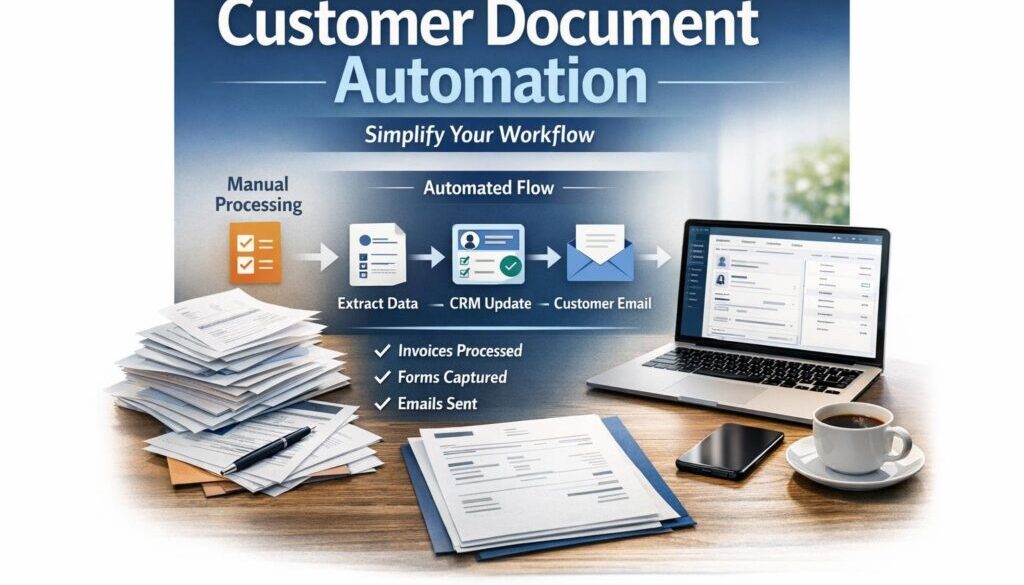
How customer document automation works
Most workflows follow the same basic pattern. The tools may differ, but the logic is consistent.
- Capture the customer data.
- Populate a document template.
- Send it for review or approval if needed.
- Collect the signature or acceptance.
- Store the final document automatically.
1. Capture the customer data
Customer details can come from a form submission, CRM record, spreadsheet, quote request or order system. The quality of this data matters. If the source data is incomplete or wrong, the generated document will be too.
2. Populate the document template
The template includes fixed sections and placeholders for variable details such as names, addresses, dates, pricing and service descriptions. In simple terms, the software fills in the blanks for you.
In Microsoft 365, this can involve Word-based templates and related automation tools. Microsoft provides official documentation for Power Automate and Word mail merge, both of which are relevant to document workflows.
3. Route for approval
Some documents should be checked before they go to the customer. This might be a manager approval for discounts, a compliance check for sensitive wording, or a final review for accuracy. Workflow tools can route the document to the right person before the next step happens.
4. Collect the signature
If the document needs to be signed, an e-signature tool can complete that step without printing or scanning. That is especially useful for service agreements, customer approvals and onboarding documents.
Official guidance from DocuSign and Adobe Acrobat Sign shows how signing workflows can be part of a broader document process.
5. Store the final version automatically
The last step is often overlooked. Once the document is final, it should be saved into the right system of record, such as SharePoint, OneDrive, Google Drive or another document management system. That makes retrieval much easier later.
This is where customer document automation becomes more than just document generation. It becomes a full workflow that reduces admin from start to finish.
What software can small businesses use?
There is no single “best” tool for every business. The right setup depends on how much volume you have, which systems you already use, and how much complexity you want to manage.
Microsoft 365 and Power Automate
Many small businesses already use Microsoft 365, which makes it a natural starting point for document workflows. Word can be used for templates, Excel for structured data, SharePoint or OneDrive for storage, and Power Automate for moving information through the process.
For businesses that want to keep things practical and familiar, this can be a sensible route into customer document automation without introducing too many new tools at once.
Google Workspace and Apps Script
Google Workspace offers a similar toolkit. Docs, Sheets, Forms and Drive can support template-based document processes, and Apps Script can add custom automation where needed. The official Google Workspace learning resources and Apps Script documentation are useful for understanding how those pieces fit together.
E-signature tools
Where signing is part of the process, a dedicated e-signature tool can reduce friction and create a cleaner audit trail. In many cases, e-signature is not the whole solution on its own; it is one part of the wider workflow.
Accounting and CRM integrations
Document workflows often work best when they connect with systems that already hold customer data. That may include a CRM, accounting package or form tool. The value comes from reusing trustworthy data rather than entering the same details in multiple places.
If your current process is held together by spreadsheets, inbox folders and copied files, this is often where a more structured automation solution can help. Simple Automations’ automation for small business approach is designed around practical workflows like these.
Where AI helps — and where it should not take over
AI can be useful in document workflows, but it should usually support the process rather than control it.
Drafting and summarising
AI can help draft a first version of a customer letter, summarise meeting notes into a proposal outline, or rewrite notes into a clearer format. That can save time at the beginning of the process.
Extracting and classifying data
AI can also help identify document types, extract useful details from unstructured text, or highlight missing information. That can be helpful when the input data is messy.
Why human review still matters
AI should not be left to make final decisions on pricing, legal language, compliance statements or customer commitments. It can draft, assist and organise, but a human should review anything that could create risk if it is wrong.
Microsoft’s official Copilot documentation is a good example of how AI is positioned as an assistant in productivity workflows, not a replacement for business judgement.
Australian privacy and recordkeeping considerations
Customer documents often contain personal information such as names, contact details, addresses, signatures, payment details or other sensitive business information. For Australian businesses, that means privacy and recordkeeping need to be part of the workflow design.
Personal information and secure storage
The Office of the Australian Information Commissioner provides guidance on Australian Privacy Principles, which are relevant when customer documents contain personal information. In practice, that means thinking carefully about who can access documents, where they are stored, and how they are shared.
Simple steps such as using strong passwords, multi-factor authentication and controlled access can make a meaningful difference.
Recordkeeping and retention
Automating documents should make records easier to manage, not harder. Make sure your workflow saves the final version in a place where it can be found later and kept for as long as required by your business or legal obligations.
Breach response and access control
If documents are stored or shared digitally, businesses also need a plan for data breaches. The OAIC’s guidance on the Notifiable Data Breaches scheme is worth reviewing so you understand what to do if something goes wrong.
This is another reason to be careful about over-complicated setups. Customer document automation should reduce risk, not add new weak points.
When is document automation worth it?
Not every process needs automation. The best candidates are usually the ones that are repetitive, predictable and high-volume.
Good candidates for automation
- documents that are sent often
- templates with only a few variables
- workflows with clear steps
- documents that need signatures or approvals
- customer documents that are time-sensitive
When manual review is still better
- documents with heavy negotiation
- one-off, highly customised proposals
- high-risk legal or compliance documents
- cases where a human needs to make the final judgement
A sensible automation strategy is to start with the documents that are common and low-risk, then expand only when the workflow is stable.
How to choose the right platform
The right platform is not always the one with the most features. It is usually the one that fits your process, your team and your tolerance for complexity.
Data quality and template maintenance
If your source data is messy, even the best tool will struggle. Make sure the fields are well defined, the template is maintained, and someone owns the process.
Security, permissions and storage
Ask where documents are stored, who can access them, and how permissions are managed. For customer documents, these questions matter just as much as the automation itself.
Integrations and workflow reliability
Check whether the platform connects cleanly with the systems you already use. A fragile setup that breaks every time a field changes is not a good fit for a busy business.
If you want help identifying the right workflow before choosing tools, Simple Automations’ automation services can help turn a manual process into something more reliable and manageable.
Practical example: turning a manual customer document process into a workflow
Here is a simple way to think about the difference.
| Manual process | Automated workflow |
|---|---|
| Staff copy customer details into a document | Customer details are pulled from a form or CRM |
| The document is saved, edited and resent by email | A template is populated automatically |
| Someone remembers to ask for approval or signature | The document is routed for approval or e-signature |
| The signed copy is filed later, sometimes inconsistently | The final version is stored automatically |
That difference is why customer document automation is so useful for small businesses. It removes several small admin tasks that otherwise eat away at the day.
How Simple Automations approaches document workflows
Document-heavy processes are often a strong starting point for automation because they are repetitive, visible and easy to improve in practical steps. The aim is not to add complexity. The aim is to make the workflow simpler, more reliable and easier to manage.
That is the same philosophy seen across Simple Automations’ work, including the trust account automation case study, which shows how a repetitive administrative workflow can be simplified when the process is well understood.
For businesses planning content, document or approval workflows, the content calendar automation case study is another example of turning a manual process into something more structured. And for businesses dealing with digital delivery, the digital product automation case study shows how a delivery workflow can be streamlined once the right steps are mapped out.
Conclusion: start with the documents that cause the most admin
Customer document automation is most valuable when it removes repetitive work without creating unnecessary complexity. For many small businesses, that means starting with quotes, agreements, onboarding packs, reminders or other documents that are sent often and follow a predictable pattern.
The key is to keep the workflow practical: capture the right data, use a clean template, add approval or e-signature where needed, and store the final document in a place that makes sense for your business. When done well, automation can reduce admin, improve consistency and make customer communication easier to manage.
Ready to Simplify Your Document Workflows?
If your business spends too much time creating, sending and filing customer documents manually, Simple Automations can help you identify the right workflow and build a practical solution.
Further reading
If you want to understand the wider support tools that can sit around a document workflow, the official documentation for Microsoft Power Automate, Google Apps Script and DocuSign can be useful references.