How to Automate New Customer Forms
When you automate customer forms, you reduce repetitive admin, speed up follow-up, and make it easier to keep customer records accurate. For many small businesses, new customer forms are the first step in a sales, onboarding, or service workflow — so if that process is messy, the rest of the customer experience often feels messy too.
This guide explains what parts of the intake process can be automated, how the workflow usually works, and what Australian businesses should think about before connecting form data to other systems.
null
If you are building a better intake process, it helps to think in simple terms: a customer submits a form, the right information moves to the right place, and your team gets alerted without having to retype everything by hand. That is the basic idea behind effective small business automation.
What Are New Customer Forms?
New customer forms are the forms businesses use to collect information from people who want to enquire, book, sign up, or begin a service. They may be called intake forms, onboarding forms, lead forms, booking forms, or service request forms.
They usually collect details such as:
- Name and contact information
- Address or service location
- Business or customer details
- Service needs or project requirements
- Preferences, notes, or special instructions
- Consent or agreement to terms, where relevant
For service businesses, trades, agencies, consultants, and appointment-based businesses, this is often the point where customer information first enters the business. If that step is manual, the rest of the workflow can quickly become inefficient.
Why Manual Form Handling Creates Problems
Manual handling often means someone has to check submissions, copy details into a spreadsheet or CRM, send a reply, create a task, and make sure nothing is missed. That takes time, and it also creates opportunities for error.
Delays and admin workload
When forms are handled manually, response times usually depend on when a staff member notices the submission. That can slow down follow-up and create a less polished customer experience.
Errors, duplicates, and inconsistent records
Manual data entry can lead to spelling mistakes, missing fields, duplicate records, or customer details being stored in different places. Once that happens, your team spends more time cleaning up data instead of serving customers.
Privacy and data-handling risks
Customer forms often collect personal information. That means businesses need to think about privacy notices, consent, storage, access control, and how data moves between tools. In Australia, this matters even more because privacy obligations may apply depending on the business and the type of information collected.
For a plain-English overview of the rules, the Australian Government’s guidance on your obligations under the Privacy Act is a useful starting point.
What Parts of the Process Can Be Automated?
Not every part of the process needs to be automated, but many repetitive steps can be simplified. The goal is to make the flow faster and more reliable without removing human judgment where it still matters.
Submission acknowledgements
One of the simplest improvements is an automatic confirmation email or message. This tells the customer their form was received and sets expectations for what happens next.
Record creation in your CRM or spreadsheet
Instead of typing details into a database yourself, form submissions can create a new record automatically. That is one of the most common ways businesses automate customer forms.
Team notifications and task creation
You can also trigger an internal alert, create a task, or send the submission to the right person. This is especially useful when leads, support requests, or urgent jobs need fast action.
Routing by service type, location, or priority
Some forms can route different submissions to different people depending on the answers given. For example, one workflow might go to sales, another to support, and another to operations.
Conditional logic and tailored form paths
Conditional logic shows different questions based on previous answers. That keeps forms shorter and more relevant. If someone selects a certain service, the form can reveal only the fields that apply to that service.
Microsoft explains this kind of branching in Microsoft Forms branching logic, and Typeform also documents similar logic jumps.
How to Automate New Customer Forms Step by Step
If you are starting from scratch, keep the workflow simple. The best systems usually begin with one good form and one clear process.
1. Choose the form platform
Start with a tool that supports the features you need, such as required fields, conditional logic, file uploads, and notifications. Official documentation from tools such as Microsoft Forms, Google Forms, Jotform, Airtable, Zoho Forms, and Formstack shows that form platforms commonly support workflows, integrations, or automation features in some form.
For example, Google documents how to create a form with Google Forms, and Microsoft shows how to create a form with Microsoft Forms.
2. Make the form shorter and clearer
Only ask for what you need. Shorter forms are easier for customers to complete, especially on mobile. Clear questions also reduce bad data and make it easier to automate the next step.
3. Add conditional logic
If different customers need different information, use conditional questions instead of one long form. That makes the experience feel more personalised and helps your team receive cleaner data.
4. Connect the form to your workflow
This is where automation starts to save real admin time. A submission can go into a spreadsheet, CRM, booking system, job system, or shared inbox depending on the way your business works.
Google’s Apps Script trigger documentation shows how form-related events can trigger actions, and Microsoft explains how to add a flow from Microsoft Forms using Power Automate.
5. Set up notifications and follow-up tasks
Once a form is submitted, the right people should know quickly. A notification can go to the office manager, sales person, technician, or account manager. You can also create a follow-up task so nothing is forgotten.
6. Test the workflow carefully
Before going live, test the form with incomplete answers, incorrect emails, unusual responses, and mobile devices. Check that the right records are created and the right notifications are sent.
This step matters because automation can move bad data faster if the form itself is poorly designed.
Where AI Can Help — and Where It Shouldn’t
AI can be useful in parts of the intake process, but it works best as a support tool rather than a decision-maker.
Useful ways AI can help
- Drafting clearer form questions
- Improving instructions and labels
- Grouping submissions into categories
- Summarising long responses for internal review
- Helping staff spot missing information
Where human review is still important
AI should not be the only layer of review for sensitive, unusual, or high-stakes submissions. A person should still review exceptions, complaints, disputes, or anything that could affect pricing, compliance, or customer rights.
In other words, AI can help organise the workflow, but it should not replace judgment where careful review matters.
Privacy, Consent, and Security in Australia
Because customer forms often collect personal information, privacy should be part of the design from the beginning rather than an afterthought.
When privacy obligations may apply
The Office of the Australian Information Commissioner explains the Australian Privacy Principles, which govern how many private sector organisations handle personal information. The OAIC also notes that many small businesses are exempt, but not all are. That means small business status alone does not guarantee there are no privacy obligations.
For small businesses, the OAIC’s small business and privacy guidance is worth reading before you automate customer forms that collect personal details.
Keep data collection reasonable
Only ask for information you genuinely need. Collecting less data reduces risk and makes your forms easier to complete. It also makes storage and handling simpler.
Understand where data goes
If a form sends data into a CRM, spreadsheet, email platform, or automation tool, check how that data is stored and who can access it. The form itself is only one part of the privacy picture.
Review third-party tools carefully
Before connecting software, read the vendor’s help pages, privacy policy, and security information. Be clear on whether the platform supports access controls, auditability, or regional storage options if those matter to your business.
Best Practices Before You Automate
Good automation starts with good process design. If the process is unclear, the automation will usually reflect that.
- Keep forms short and mobile-friendly. Most customers will complete them on a phone.
- Use clear labels and plain English. Avoid internal jargon.
- Validate key fields. Email addresses, phone numbers, and required fields should be checked.
- Use spam protection where needed. Forms are often targets for low-quality submissions.
- Review exceptions manually. Not every submission should be fully automated.
- Check vendor features directly. Product capabilities change, so rely on current official documentation.
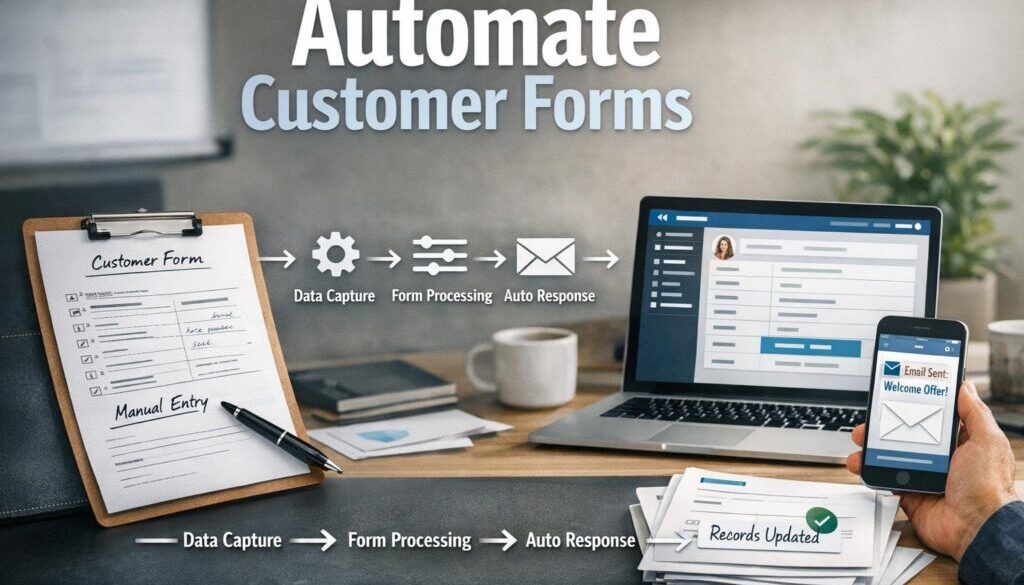
Practical Example of a Simple Automated Intake Workflow
Here is what a basic workflow might look like in a small business:
- A customer fills out a form on your website.
- The form sends an automatic confirmation email.
- The submission creates a new record in your CRM or spreadsheet.
- The right team member receives a notification.
- A task is created for follow-up.
- If the submission needs review, it is flagged for a person to check.
That is a simple example, but it can remove a surprising amount of repetitive admin. If your business handles document-heavy workflows, the same principle is used in projects such as our trust account automation work, where repetitive steps were simplified through automation.
How This Fits into a Bigger Automation Strategy
Automating customer forms is often one of the best first steps because it affects both customer experience and internal admin. Once the intake process is working well, you can look at the next bottleneck — perhaps follow-up emails, quoting, onboarding, or reporting.
Simple, practical systems are often easier to maintain than complex ones. That is why many businesses start with a single form workflow before expanding into broader automation solutions.
If you are interested in how automation can support repeated content or publishing workflows, our content calendar automation case study shows another example of a structured process being simplified. For businesses selling downloadable products, the principle is similar in our digital product automation project, where delivery workflows were streamlined.
And if you want a broader overview of how automation can support a small business, the Business Hub is a helpful place to continue learning.
When to Get Help
You may be able to set up a basic form workflow yourself, especially if the process is simple. But if your intake process includes multiple branches, privacy-sensitive data, approvals, or several connected systems, it can be worth getting help from someone who builds automation every day.
That is especially true when the goal is not just to collect information, but to create a cleaner end-to-end process that your team can actually maintain.
Ready to Simplify Customer Intake?
If your current form process creates too much admin, Simple Automations can help you turn it into a cleaner workflow that saves time and reduces manual handling.
Conclusion
To automate customer forms well, start with the whole workflow, not just the form itself. The best systems collect only the information you need, route it to the right place, alert the right people, and keep privacy in mind from the beginning.
For small businesses, that usually means less repetitive admin, fewer mistakes, and a faster response for customers. Start with one simple form process, improve it, then expand from there.
If you are ready to make that happen, Simple Automations can help you design practical automation that supports your business without adding unnecessary complexity.