How to Automate Spreadsheet Updates: A Practical Guide for Small Businesses
If your team spends too much time copying data into Excel or Google Sheets, you are not alone. Many small businesses still rely on spreadsheets for tracking leads, jobs, stock, quotes, reports and admin. The problem is not the spreadsheet itself. The problem is the manual updating.
This guide explains how to automate spreadsheet updates in a simple, practical way. You will learn what spreadsheet automation means, which tasks are easiest to automate, what tools are commonly used, and where human review is still important. We will also cover privacy, permissions and the risks to watch for before you put anything live.
null
For businesses looking to reduce repetitive admin beyond spreadsheets, the same thinking applies to broader small business automation and practical workflow improvements across the business.
What does it mean to automate spreadsheet updates?
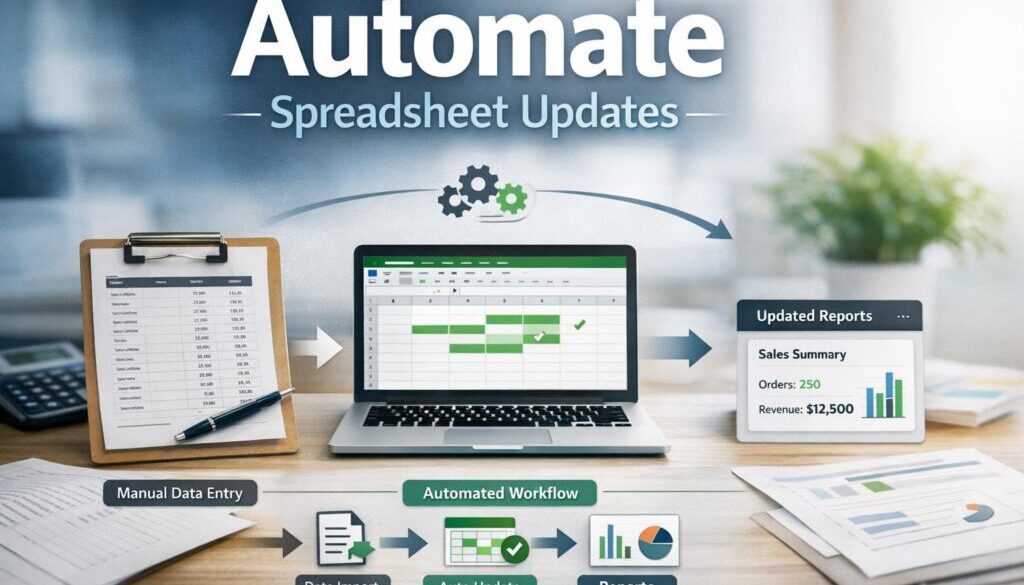
To automate spreadsheet updates means setting up a workflow so information flows into a spreadsheet without someone manually retyping it each time. Instead of opening a file, finding the right row and pasting in a value, the sheet is updated by a form submission, another app, an email, a file upload or a scheduled sync.
In simple terms, automation replaces repetitive copy-and-paste work with a structured workflow. The spreadsheet still matters, but the updating happens faster and more consistently.
Common spreadsheet tasks businesses automate
- Adding new leads from web forms into a tracker
- Updating job status from a project or job management tool
- Pulling order details into a stock or sales sheet
- Recording invoice or payment information
- Refreshing weekly reports from another system
- Sending alerts when a spreadsheet row changes
How triggers and actions work
Most automation tools use the same basic idea: a trigger starts the workflow, and an action happens next.
For example, a new form submission might trigger a new spreadsheet row. Or a change in a CRM record might trigger an update to a reporting sheet. An API is simply a way for two software systems to exchange information, but you do not need to be technical to use many low-code tools built on top of that idea.
Why small businesses automate spreadsheets
Small businesses usually automate spreadsheets for practical reasons rather than technical ones. The goal is to save time, improve accuracy and reduce the dependency on one person who knows how to keep the sheet current.
Save time on repetitive admin
Manual spreadsheet updates are often small tasks that add up over the week. Copying data from forms, emails or software into a sheet may only take a few minutes each time, but the repetition is what creates the burden. When you automate spreadsheet updates, that routine work can happen in the background.
Improve accuracy and timeliness
Manual entry creates opportunities for typos, missed rows and inconsistent formatting. Automation can reduce those risks by moving data directly from one system to another. It can also keep records up to date sooner, which helps when you rely on spreadsheets for reporting or day-to-day decisions.
Reduce dependency on manual copy/paste
When one person is responsible for keeping a spreadsheet current, the business becomes dependent on that person being available. Automation helps spread the load and makes the process more reliable. It is especially useful when multiple people need to work from the same data.
For broader workflow improvement beyond a single sheet, Simple Automations builds business automation solutions that simplify repetitive processes in a practical way.
Best spreadsheet automation use cases
There are many ways to automate spreadsheet updates, but some patterns are more common than others. The best use cases usually involve structured information that is collected the same way each time.
Form submissions to spreadsheet rows
This is one of the simplest and most reliable workflows. A form collects information and sends it directly into a sheet as a new row.
Current problem: Someone enters enquiry or booking details manually into a spreadsheet after receiving them.
Automation opportunity: The form submits directly to the sheet.
How it could work: A customer fills in a web form, and the details appear in the spreadsheet automatically.
Business benefit: Less manual entry, fewer missed records, and faster follow-up.
Microsoft Forms and Google Forms are commonly used for this type of workflow. Microsoft’s official guidance on creating a form with Microsoft Forms and Google’s Google Sheets help resources are useful starting points.
App or CRM updates synced into Sheets or Excel
Many businesses use a CRM, booking platform or job management tool as the main source of truth, then push selected data into a spreadsheet for reporting or review. This avoids duplicate entry across systems.
This is useful when the spreadsheet is part of a reporting process rather than the system actually doing the work. The automation simply keeps the report in sync.
Email or file-based data capture
Some businesses receive structured emails, invoice files or exported CSVs that can be used to update a spreadsheet. This can work well, but it needs caution because email formats and file layouts can change.
If your process depends on file naming, subject lines or PDF layouts, test it carefully. These workflows are often helpful, but they are more fragile than form-based automation.
Scheduled updates and report refreshes
Not every sheet needs to update in real time. Sometimes a daily or hourly sync is enough. Scheduled updates are useful for dashboards, stock summaries and regular reporting.
This can reduce clutter while still keeping the data reasonably current. For many small businesses, that balance is more practical than chasing real-time updates everywhere.
Spreadsheet change notifications and approvals
Automation can also run after the spreadsheet changes. For example, when a new row is added, a notification can be sent to the right person. In higher-risk workflows, a record can be flagged for review before it is finalised.
This is useful when you want automation to move the process forward, but not remove human oversight completely.
Tools used to automate spreadsheet updates
There is no single best tool for every business. The right choice depends on what you already use, how complex the workflow is, and how much control you need.
Microsoft Excel and Power Automate
For businesses already using Microsoft 365, Excel and Power Automate are common options. Microsoft’s official Power Automate overview explains that it is designed to automate workflows across services.
Power Automate is often used when a business wants data to move between Microsoft apps and other connected tools. Excel is still the spreadsheet, but the updates happen through a workflow rather than manual entry.
Google Sheets and Apps Script
Google Sheets is widely used by small businesses that want a cloud-based spreadsheet with collaboration built in. For more custom workflows, Google Apps Script provides an official way to build automations around Google Workspace tools.
Google Sheets can also be paired with forms and automation platforms for simpler workflows. It is a popular choice when multiple people need access to the same live data.
Zapier and Make
Zapier and Make are common low-code platforms for connecting apps. They are often used to move data into spreadsheets, create new rows, update existing rows and send notifications.
Their help centres are the best place to check current features and supported integrations: Zapier help and Make help. Because platform capabilities can change, it is best to confirm the exact workflow you need before relying on it.
Airtable as a spreadsheet-like option
Airtable is not a traditional spreadsheet, but many businesses use it in a spreadsheet-like way. It can be a good option when you need more structure than a standard sheet provides. Its automation features may suit businesses that want organised records with a lighter database feel.
Official support information is available through the Airtable support centre.
Where AI features fit in
AI can help with spreadsheet work, but it is not the same thing as automation. Microsoft 365 Copilot and Google Workspace AI features may help summarise data, draft formulas or analyse information, but they do not replace a structured workflow by themselves.
In practice, AI is best used as a helper. It can assist with extracting information from text, identifying patterns or drafting logic. The actual updating of the spreadsheet still needs proper controls.
When automation works best — and when it doesn’t
Spreadsheet automation works best when the data is structured, repeatable and predictable. It is less suitable when every record is different or when the workflow depends on judgement calls.
Good candidates for automation
- Repetitive data entry
- Standard forms and intake processes
- Simple status updates
- Routine report refreshes
- Duplicate detection
- Timestamping and notifications
Tasks that still need human review
- Pricing changes
- Exception handling
- Customer complaints
- Financial approvals
- Ambiguous records
- Sensitive or high-risk data
Common failure points and data quality risks
Automation does not solve bad data by itself. It can actually spread problems faster if the source data is messy. Common issues include duplicate records, missing fields, inconsistent formats, formula errors and accidental overwrites.
That is why a spreadsheet automation workflow should be checked carefully before it goes live. It is also why many businesses keep a review step for important records.
A practical example of simplifying a document-heavy workflow is our trust account automation case study, which shows how a repetitive administrative process can be streamlined without pretending that every step should happen without oversight.
Privacy, permissions and compliance considerations in Australia
When spreadsheet updates involve personal information, Australian businesses need to think about privacy and access control. The Office of the Australian Information Commissioner provides guidance on the Australian Privacy Principles and general privacy guidance for organisations.
Personal information and the Privacy Act 1988
The Privacy Act 1988 is the main legislation to be aware of in this area. Whether and how it applies depends on the business, the type of information being handled and other legal factors. If your spreadsheets contain customer, employee or other personal data, it is worth treating that data carefully.
Access controls and sharing permissions
Not everyone needs access to every spreadsheet. Keep permissions as tight as practical. This reduces the chance of accidental changes, unauthorised access and accidental sharing of sensitive information.
Third-party tools and data storage concerns
If you use external automation platforms, check where data is processed and stored, what permissions the tool needs, and how the workflow handles personal information. Do not assume a tool is compliant simply because it is popular. Confirm the settings and documentation for the specific use case.
How to plan a safe spreadsheet automation workflow
The safest way to automate spreadsheet updates is to start small. Pick one process that is repetitive, stable and easy to test. Then build in checks so errors are caught early.
Start with one repeatable process
Choose a workflow with a clear start and end point, such as form submissions into a lead tracker or order data into a reporting sheet. Avoid trying to automate an entire department’s spreadsheet processes in one go.
Validate data before it updates the sheet
Simple validation rules can stop many problems before they happen. For example, you can check whether required fields are completed, whether dates are in the right format, or whether a record already exists.
Test for duplicates, conflicts and overwrites
One of the most common spreadsheet automation problems is two systems trying to update the same record. Build in duplicate checks and decide which system is the source of truth for each field.
Add alerts, logs and fallback processes
If an automation fails, someone needs to know. A good workflow usually includes alerts, simple logs and a manual fallback option. That way, if the automation stops working, the business does not stop with it.
When a workflow needs a custom solution rather than a generic tool, automation solutions can help identify the right process and build it in a practical way.
How spreadsheet automation works in real business settings
Here are a few realistic examples that suit Australian small businesses.
Trades and field services
A job booking form feeds a spreadsheet used for weekly scheduling. A site visit can update job status, and a finished job can be marked complete without retyping the same information several times.
Professional services
A client intake form creates a new row in a project tracker. Later, status changes from the CRM update a reporting sheet so the team can see what is active, waiting or complete.
Ecommerce and product-based businesses
Orders can flow into a sales or stock sheet. That helps with reporting and stock checks, especially when you do not need the spreadsheet to be your primary business system.
Freelancers and consultants
Leads, proposals and invoices can be tracked in one place with some of the updates handled automatically. That reduces administrative overhead and makes follow-up easier.
Case study examples from Simple Automations
Document-heavy processes are often a good starting point for automation. Our trust account automation project is one example of how a repetitive administrative workflow can be simplified.
If your business manages content planning alongside spreadsheet tracking, our content calendar automation case study shows how structured planning workflows can be made easier to manage.
For businesses that deliver files or digital assets, digital product automation is another example of how a repeatable process can be organised so it runs more smoothly.
When to move beyond spreadsheets
Spreadsheets are flexible, but they are not always the best long-term system. If the data becomes too large, too sensitive or too complex, it may be time to move to a more suitable tool.
Signs your process needs a different system
- Too many people are editing the same sheet
- Important data is regularly overwritten
- Reporting depends on fragile formulas
- There are repeated sync problems
- The workbook has become hard to maintain
- You spend more time fixing the sheet than using it
Alternatives if reporting or data management outgrows spreadsheets
If a spreadsheet is starting to act like a database, it may be time to consider a better-fit system. That might mean a CRM, a job management platform, a database-backed app or a more structured automation setup. The right choice depends on the process, not on the tool trend.
Frequently asked questions
Can AI automate spreadsheet updates?
AI can assist with parts of the process, such as extracting information or summarising data, but it should not be treated as a complete automation strategy on its own. For reliable spreadsheet updates, use structured workflows with clear triggers, actions and checks.
What is the easiest spreadsheet automation to set up?
Form-to-sheet workflows are often the easiest starting point. They are simple, predictable and usually less fragile than email parsing or multi-system syncs.
Is Google Sheets or Excel better for automation?
Neither is universally better. Google Sheets is often convenient for cloud collaboration and form-based workflows. Excel can be a strong option if your business already works inside Microsoft 365. The better choice depends on the systems you already use.
What are the risks of automating spreadsheets?
The main risks are bad data, duplicates, overwrites, permissions issues, fragile file-based workflows and relying too heavily on a process that has not been tested properly. A careful setup with validation and alerts reduces those risks.
Conclusion
To automate spreadsheet updates well, focus on the business problem first and the tool second. The best workflows are the ones that reduce repetitive admin, improve accuracy and still leave room for human oversight where it matters.
If you are ready to simplify a repetitive spreadsheet process, start with one workflow that is stable and easy to test. From there, you can build a practical automation that saves time without adding unnecessary complexity.
Ready to Simplify Your Spreadsheet Workflow?
If manual spreadsheet updates are slowing your business down, we can help you map the process and identify where automation makes sense.
For more practical guides and business process ideas, visit the Business Hub or learn more about Simple Automations.